News Desk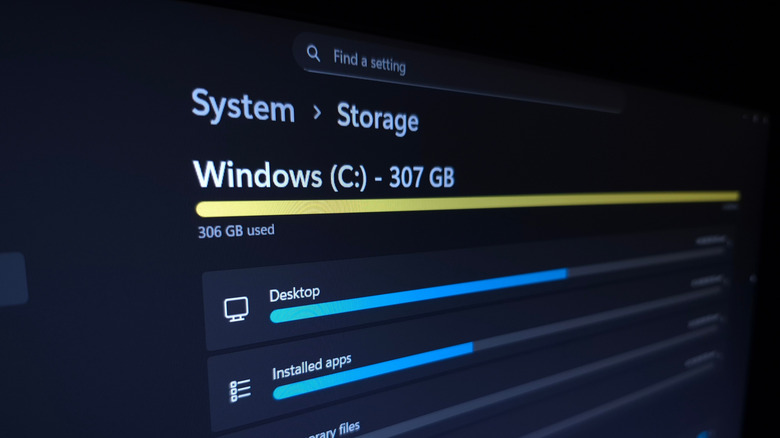
Use a methodical approach to see what’s using the most space on your PC and easily clean it up. Programs, photos, videos, games, downloads, and system data like temporary files and updates compete for space. There's so much clutter that it's easy to lose track of it all.
To clean up space in Windows, follow these steps:
1. **Storage Settings**: Open Windows' built-in storage management tool by pressing Win + I, then go to System > Storage. Here, you'll see a breakdown of what's taking up space. Key categories include Installed apps, Temporary Files, and System & Reserved.
- **Installed Apps**: Sort by size (large to small) and uninstall unused apps. - **Temporary Files**: Use the Cleanup System Files option to remove unnecessary files like thumbnails. - **Recycle Bin**: Open it from your desktop to restore files before permanently deleting them. - **System & Reserved**: Disable features like hibernation (via Command Prompt) or reduce system restore points to reclaim space.
2. **Third-Party Tools**: Use tools like TreeSize Free to analyze individual files. Select directories (e.g., C: drive) and drill down to identify large folders like Program Files and AppData. Tools like dupeGuru can also find duplicate files.
3. **Freeing Up Space**: - Uninstall unused Steam games. - Delete large files and clear the Recycle Bin. - Offload big files to cloud services (e.g., YouTube, Google Photos) or use OneDrive to manage local copies. - Consider external drives (SSDs or HDDs) for additional storage.
4. **Automate Cleanup**: Enable Storage Sense in Settings > System > Storage to automatically clean up junk files. Configure it to run when storage is low or at regular intervals, ensuring Recycle Bin and Downloads options are set carefully to avoid data loss.
The goal is to identify and remove unnecessary files systematically, ensuring you retain important data while maximizing available storage.
Source: Engadget